

Austrian Cell Phone Plan
How to Install an eSIM on iOS Device
Follow these simple and straightforward instructions to install your new eSIM on your iOS device:
Before You Begin
- Make sure your iOS device is eSIM compatible
- Ensure your iOS device is carrier unlocked
- Have a stable internet connection available
Installation Methods
** Please be aware that eSIM can only be installed once. You should perform the installation under stable network connection and do not interrupt the installation process. Once installed, do not delete your eSIM after installation.
You can install your eSIM using either a QR code or manual entry:
(1) Access your eSIM details
- Log in to your account on App or Website
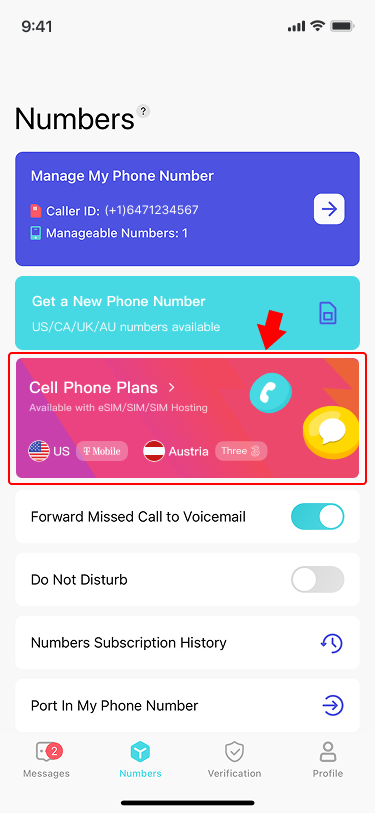
- Go to Numbers > Cell Phone Plans
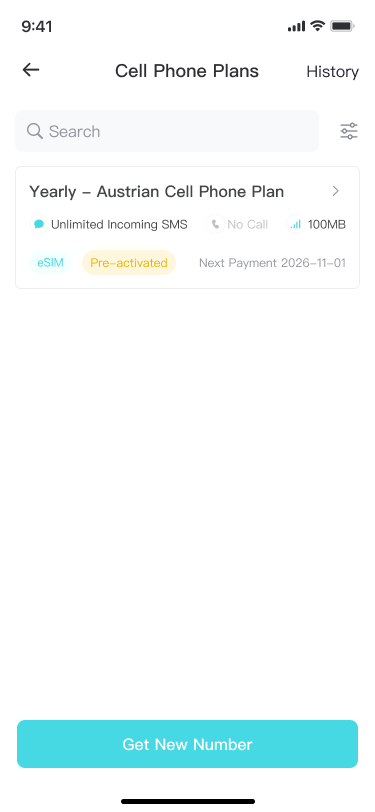
- Select your plan
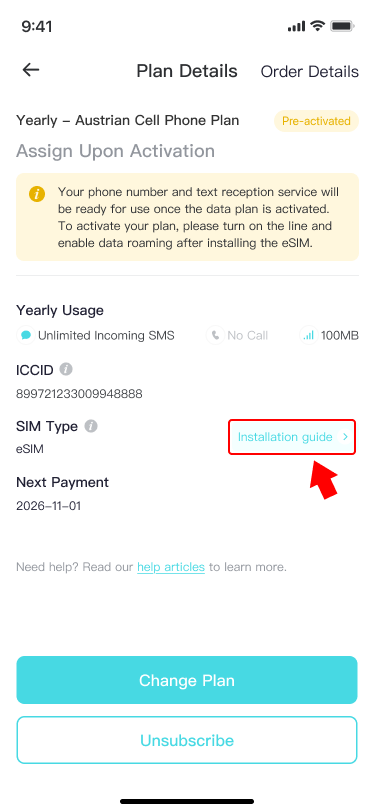
- Click Installation guide under SIM Type
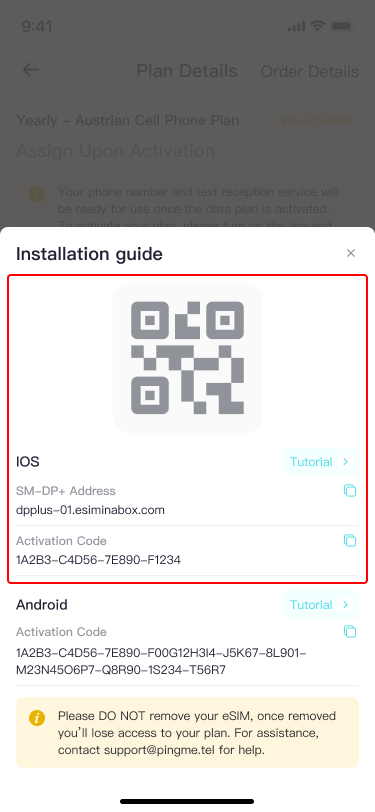
- Get the Installation QR code
(2) Install on your iOS Device
- Option 1: QR Code Installation
- Go to Settings > Cellular > Add eSIM
- Select Use QR Code
- Scan the QR code (displayed on another device or printed)
- Tap Continue when prompted
- Wait for installation to complete (may take a few minutes)
- Option 2: Manual Installation
- Go to Settings > Cellular > Add eSIM
- Select Enter Details Manually
- Enter the SM-DP+ Address and activation code in your installation guide when prompted
- Tap Continue
- Wait for installation to complete (may take a few minutes)
Final Setup
(1) Label your eSIM
- Go to Settings > Cellular
- Select your newly installed eSIM
- Tap Cellular Plan Label
- Enter a name that helps you identify this plan
(2) Activate your service
- Go to Settings > Cellular
- Select your eSIM
- Toggle Turn On This Line and Data Roaming to activate
Your eSIM is now ready to use! Enjoy seamless connectivity for mobile data and text reception with your new eSIM service.
Need help? Contact our support team at [email protected]